
Bridge-SMS Guide
How to use Bridge-SMS: choose a route and read your SMS code
Updated
Before using Bridge-SMS, check that the target app is asking for an SMS code. This guide follows the actual order flow: choosing a service and country, checking the quote, reading the message, and handling a failed attempt. Use a number you control long term for important accounts.
What to check before ordering
Read the verification method shown by the target app. Some codes go to a signed-in device, email, or an authenticator. Buying an SMS number cannot change that delivery channel.
Check that the app accepts the selected country and number type. Bridge-SMS lists available routes; the target app decides whether it accepts a particular number.
When a temporary number is a poor fit
Use a phone number you will keep for banking, long-lived accounts, or account recovery. A temporary order cannot promise future access to the same number.
Choose the service, country, and quote
On the home page, select the service that matches the target app, then choose a country it supports. A service page shows an estimated starting price; selecting a country opens the order page for that route.
On the home page, click the orange country price to expand its offers. That only shows the available tiers. Check stock, quantity, and price; pressing Buy on a tier submits the order.
Check the dialing code, price, stock, and order window. Service-page estimates may be cached, so confirm the current terms in the order interface. A cheaper country is not useful if the target app requires another region.
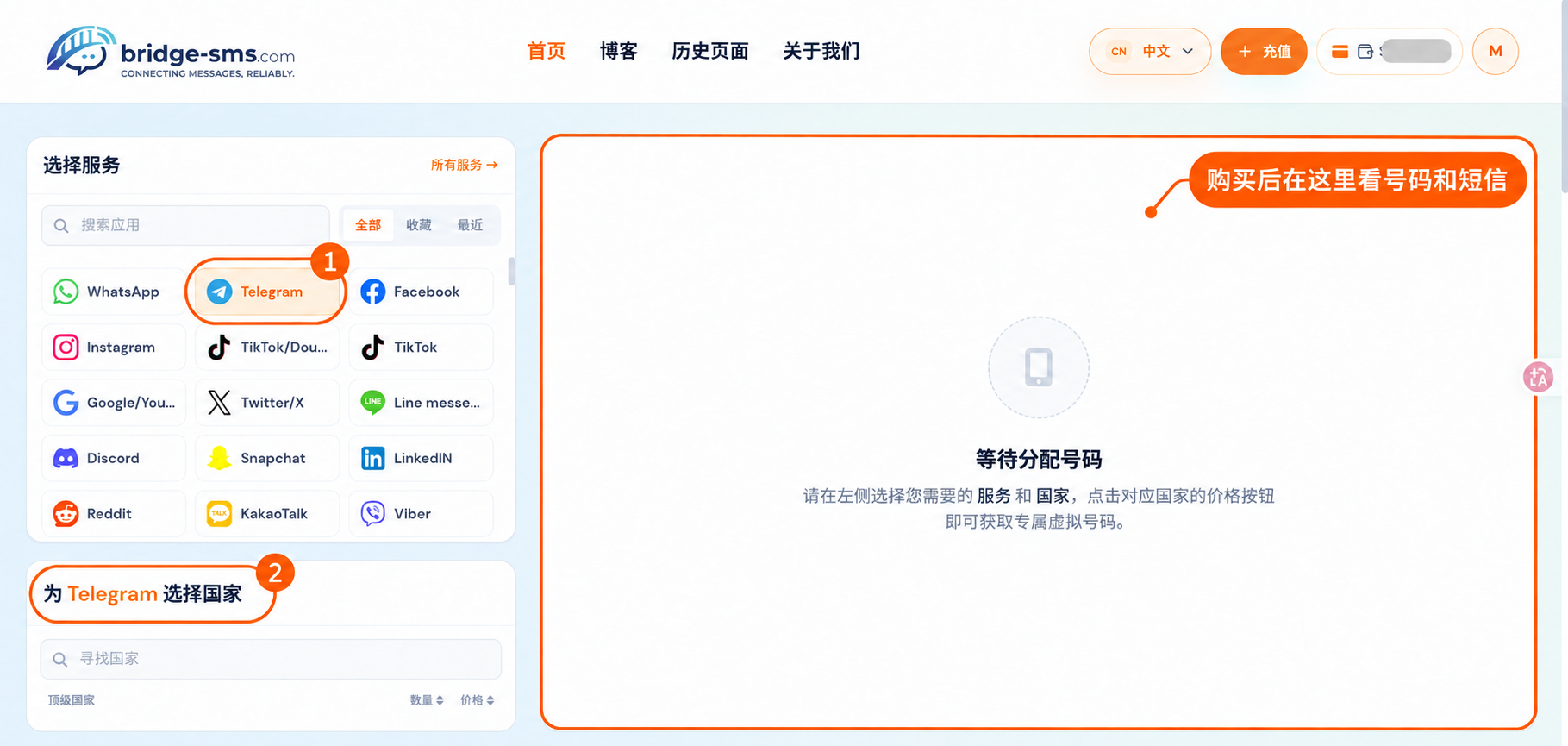
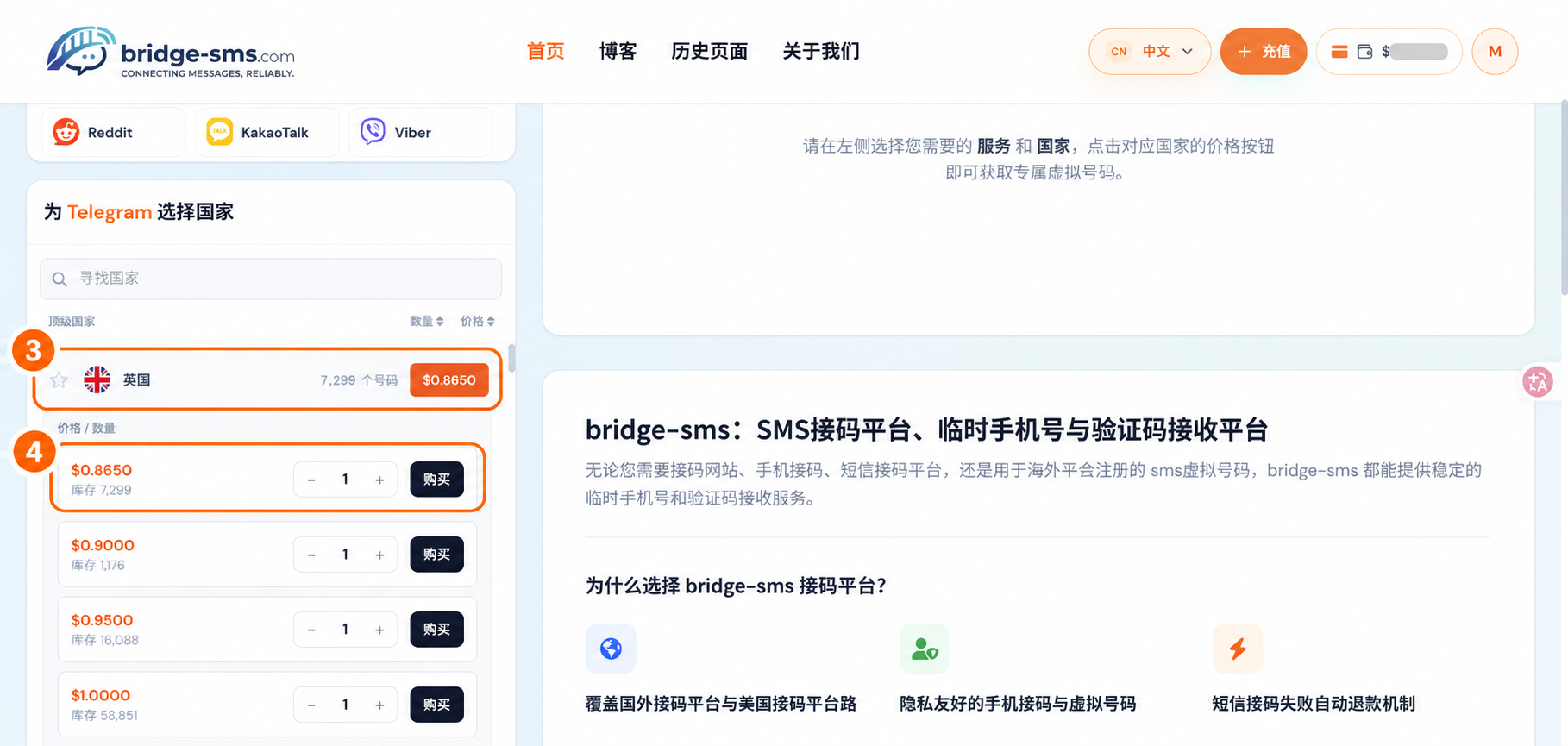
Three checks before buying
- The target app currently asks for an SMS, not an in-app or email code.
- The service, country, and dialing code match the app’s requirements.
- You have reviewed the quote, stock, order window, and failure rules.
Match the exact service label
WhatsApp and WhatsApp Business may be separate catalog entries. TikTok/Douyin shares a catalog label, but the two apps may apply different verification rules. Follow the prompt in the app you are actually using.
Find the number and code in your order
After confirming the order, check the assigned number, status, and waiting time in the active-order area. Enter the number in the target app’s requested format. Do not repeat the dialing code if its form already supplies it.
Request the SMS in the target app, then return to the active order to read the message. A code request is not proof that an SMS was delivered; wait for the order to show the message.
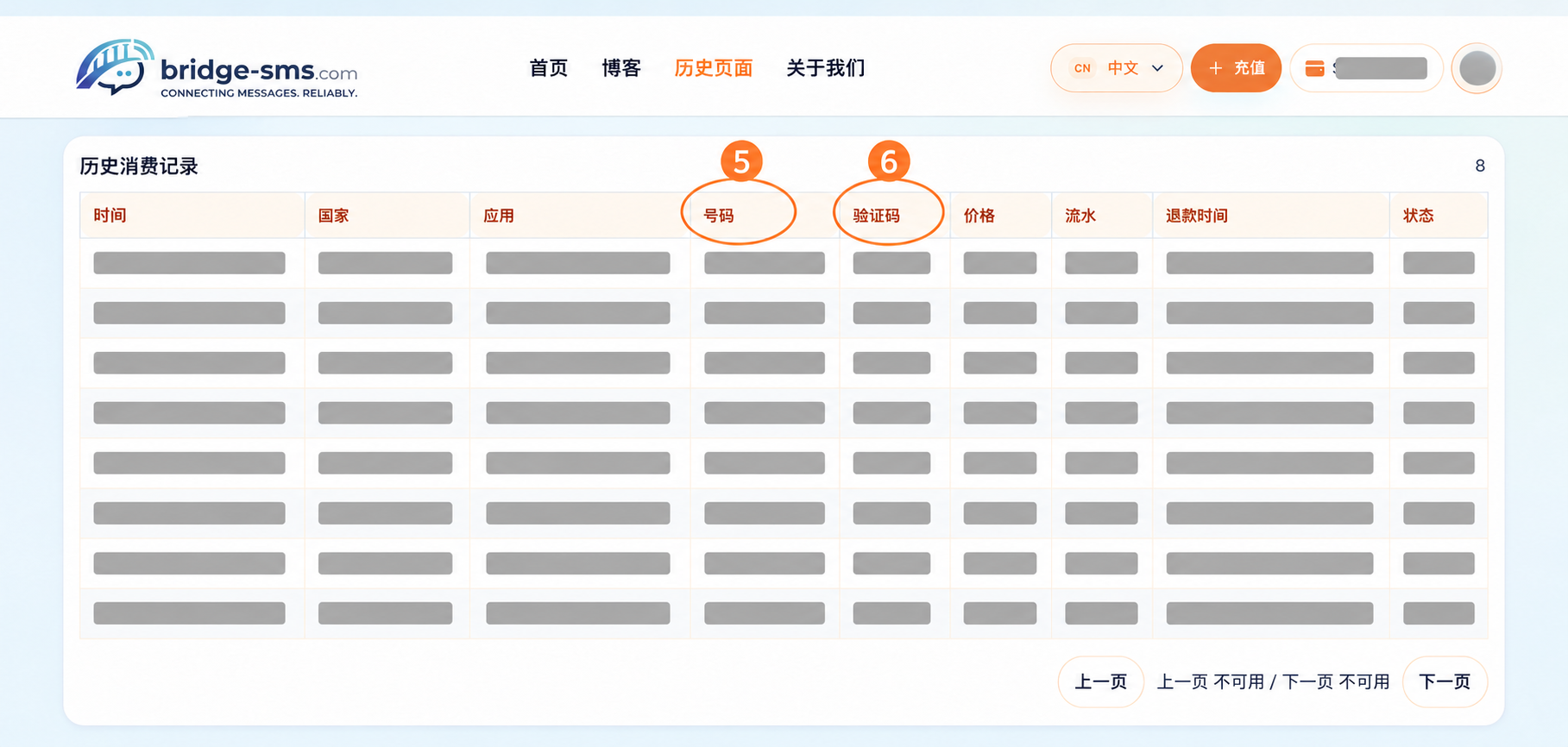
After the order ends, open History in the header. The Number column shows the assigned number and the Code column shows a received SMS code; an order with no message may show a dash.
Keep details for support
If you need help, keep the order ID, service, country, request time, and displayed status. Do not publish your verification code.
If the number is rejected or the SMS is missing
First distinguish a rejected number from an accepted number that has not received a text. For rejection, check the app’s number-type and regional rules. For a missing text, check the dialing format, order window, alternative delivery channels, and resend prompt.
Avoid buying several numbers or requesting codes repeatedly. Cancellation and refunds depend on the status, waiting time, and rules shown for the order. Keep the order ID when contacting support.
Where to go next
Read the missing-code guide for a step-by-step check, or use the service directory to find advice specific to the target app.
Use a number only for lawful, authorized purposes allowed by the target service. Keep a durable recovery method for important accounts.